Another year, another totally unwanted Firefox “update” nobody asked for.
To disable this travesty:
- Type about:config into Firefox’s URL bar
- On the page which appears, search for “nova“
- Change all the resulting settings to false
- Enjoy
Succinct software solutions without the bullshit. (And absolutely no AI-generated crap.)
 //
//Another year, another totally unwanted Firefox “update” nobody asked for.
To disable this travesty:
//Here’s a basic guide to fixing the KitchenPerfected/Lloytron E5602SS spice grinder if it’s stopped working or grinds intermittently.

If the grinder works but only when you screw the lid in a specific position, chances are the cheap, low-quality plastic tabs in the lid have snapped, or one of the cheap, low-quality microswitches have failed… again.
Luckily these faults can be bypassed fairly easily.
Disassembly
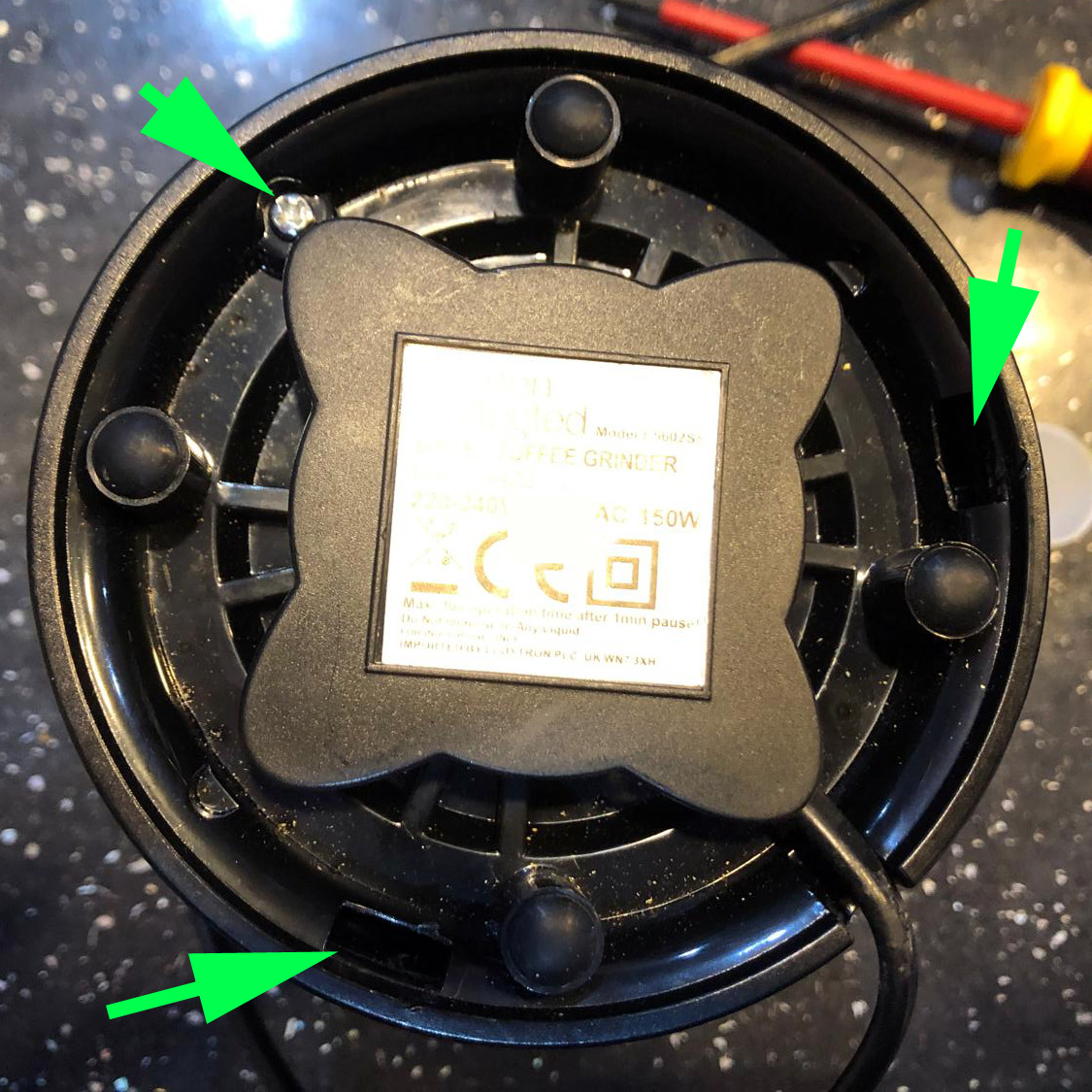
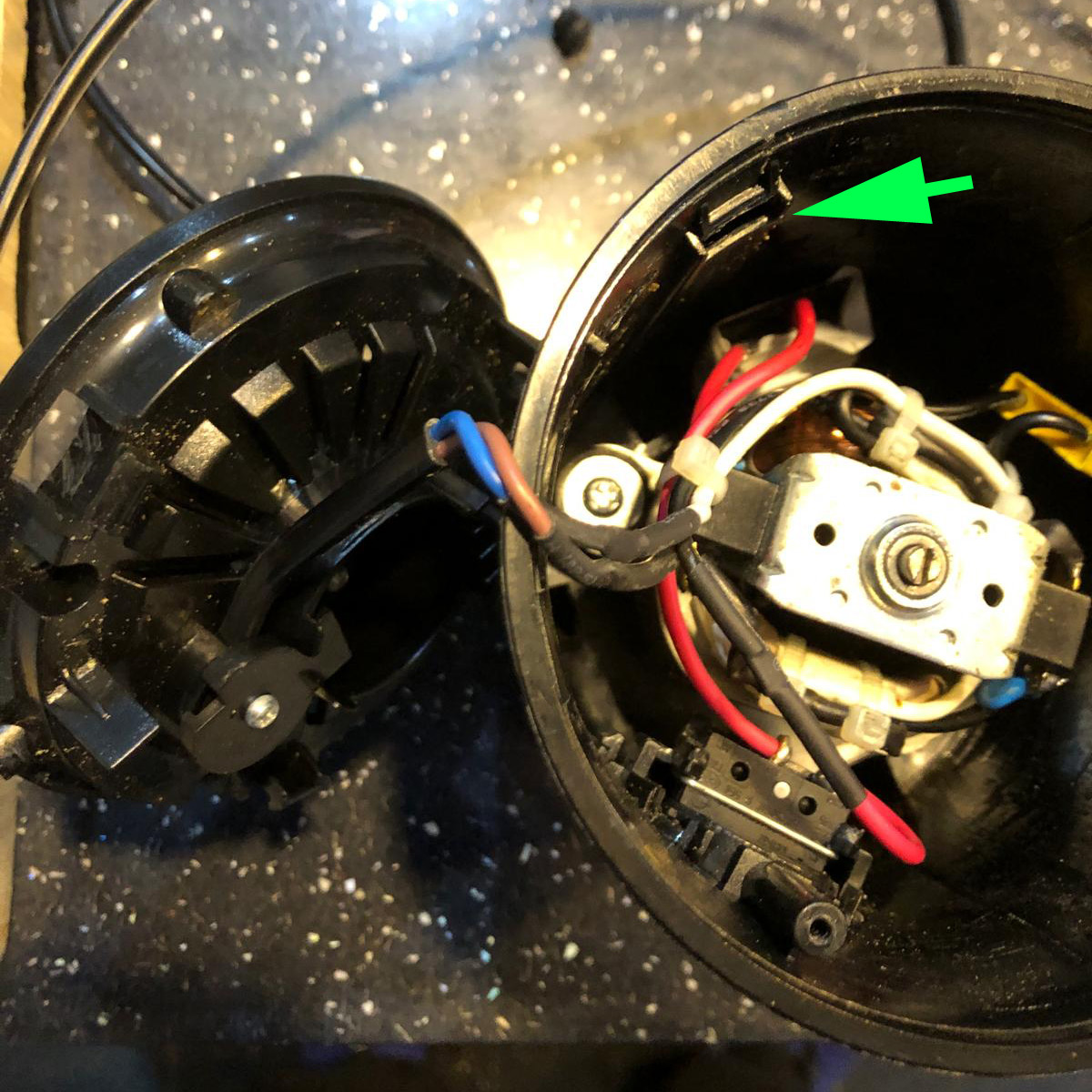
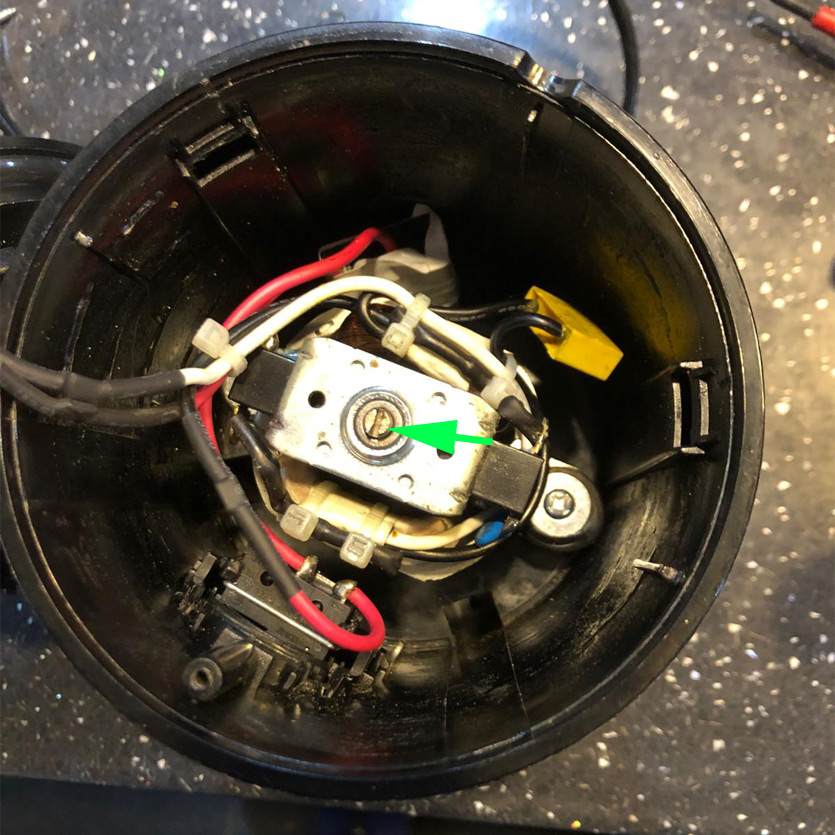
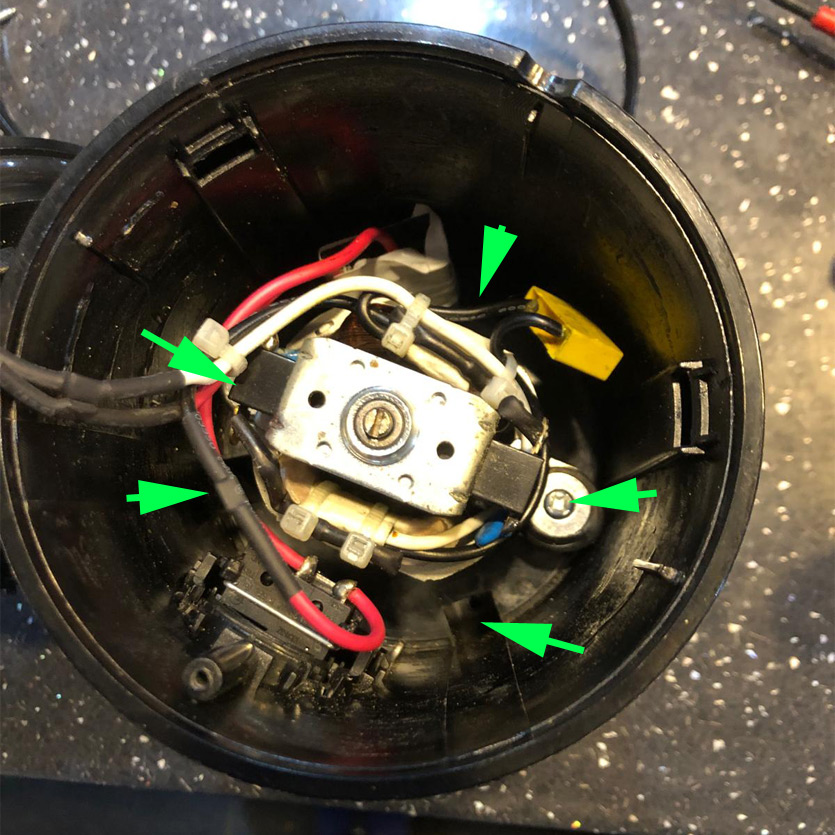
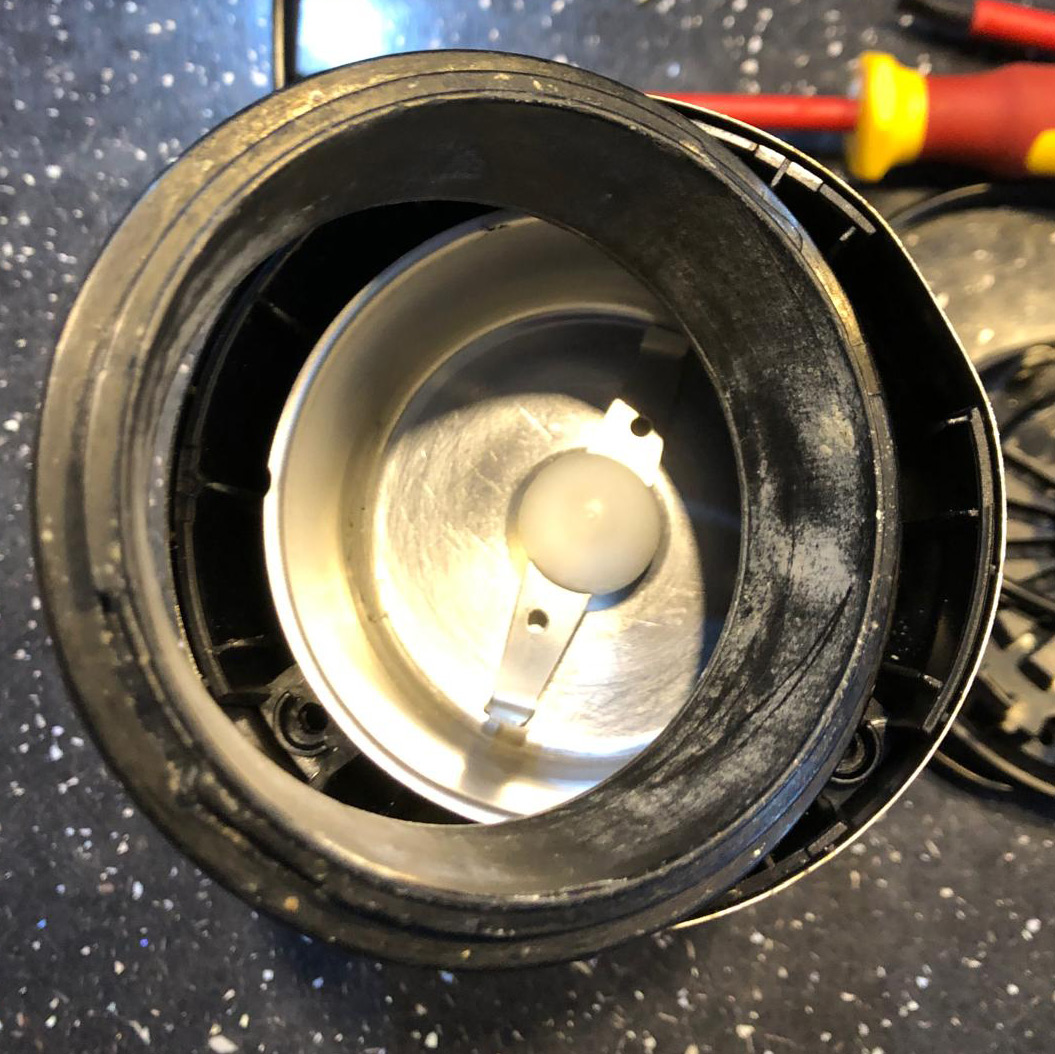
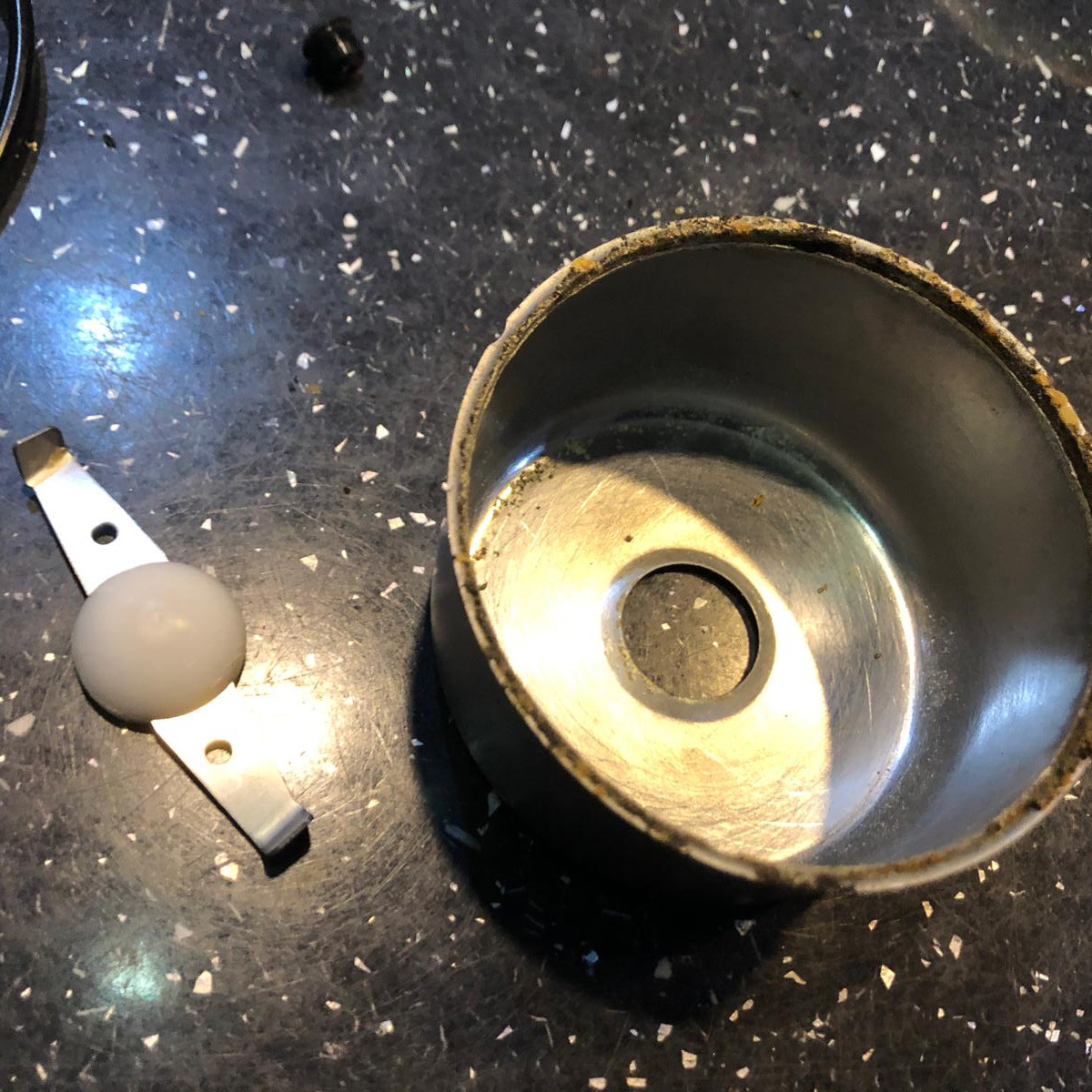
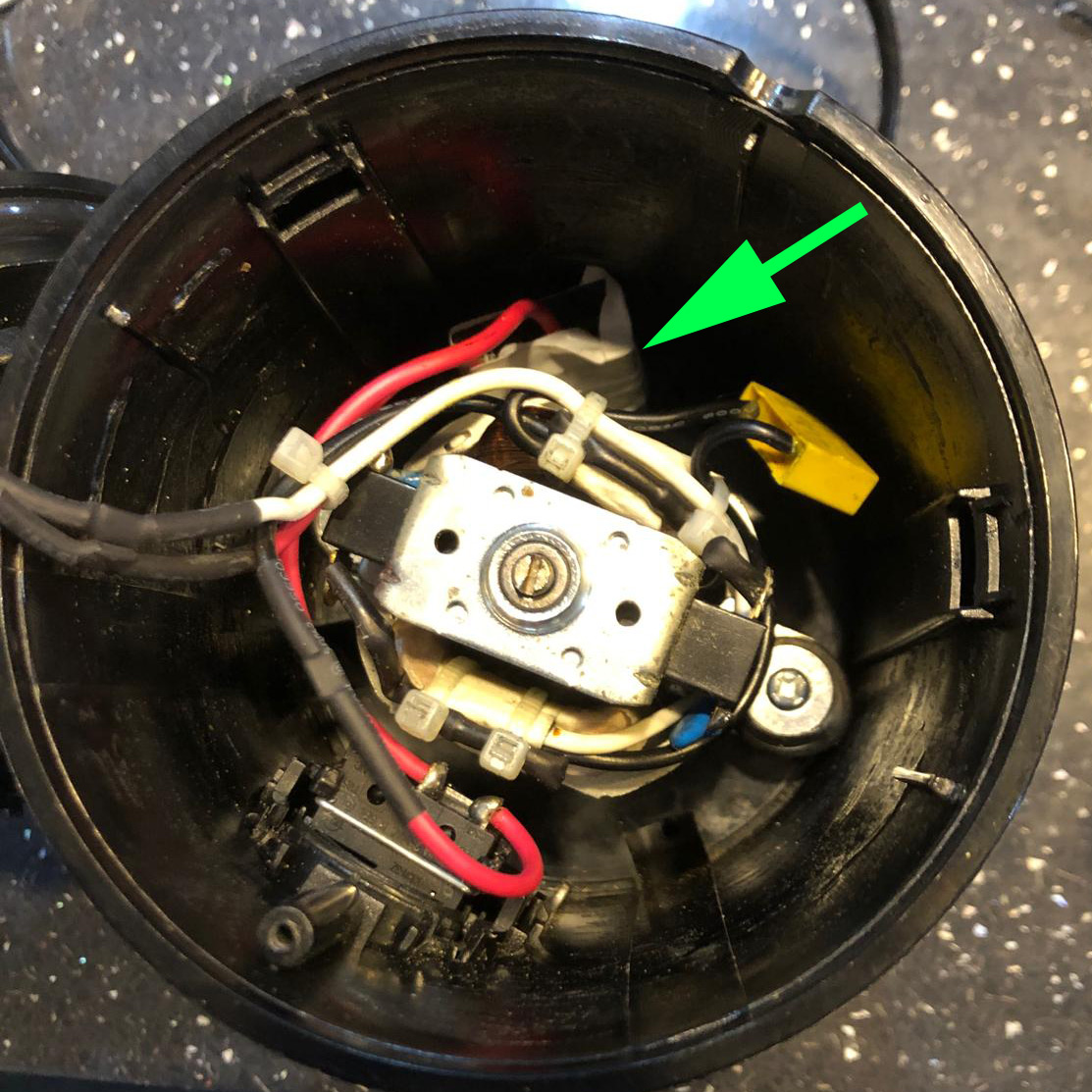 The microswitch will then lift out. It will look similar to this:
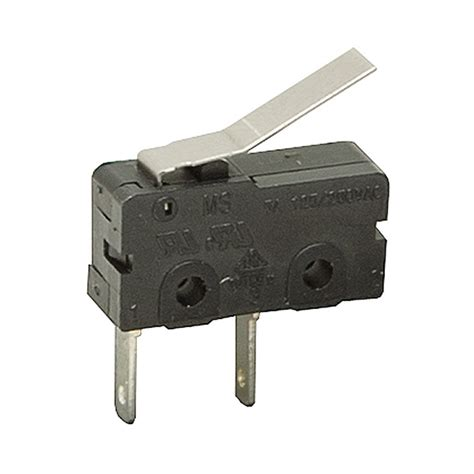
To bypass or override it, either permanently close the switch by using electrical tape to hold down the metal lever, or – if the switch has failed completely – you can solder the wires at the input and output terminals together.
//Older versions of iTunes for Windows (e.g. 10.7.0.21) were great. They had support for a taskbar-embedded player and could minimize to the system tray. They weren’t completely full of bloat and had a simple, usable interface.
In newer versions of iTunes, all this changed. The interface was made worse (particularly the display of album art) and the incredibly useful taskbar player was abandoned. As is often the case with large software providers, users complaining about this were ignored.
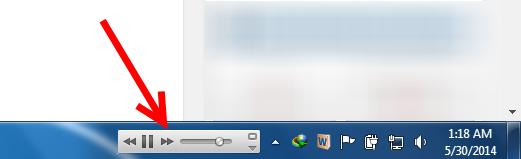
So you might be thinking, “If you like the old version of iTunes so much, just keep using it!”
However, if you use an old/unsupported version of iTunes you may find yourself unable to connect to or sync with modern devices (iPhones/iPads/iPods) because they’re too new.
Fortunately there is a workaround, although it’s not super elegant and does require a little bit of technical knowledge.
You can continue using the older version of iTunes as your music player and still be able to sync your devices by running a newer version of iTunes in a Virtual Machine (VM) and using that verion to sync your music library with your devices.
You do not have to duplicate or copy your music library to the VM; instead you can force the VM iTunes to access your existing music files via the local network instead.
Instructions:
Documents\My Music\iTunes and copy iTunes Library.itl to the VM’s desktop. C:\Media\Music\Albums, create an empty folder on the VM at C:\Media\Music\ mklink /D "C:\Media\Music\Albums" "\\yoursharepath\Albums" iTunes Library.itl from the desktop to Documents\My Music\iTunes.The above process will essentially duplicate your iTunes library within the VM, with iTunes sourcing all your music from your shared folder over the network.
You can now plug in your iPhone, connect it to the VM (e.g. on VirtualBox this is done by right-clicking the small USB icon at the bottom of the screen and choosing Apple iPhone) and then use iTunes within the VM to sync with your devices.
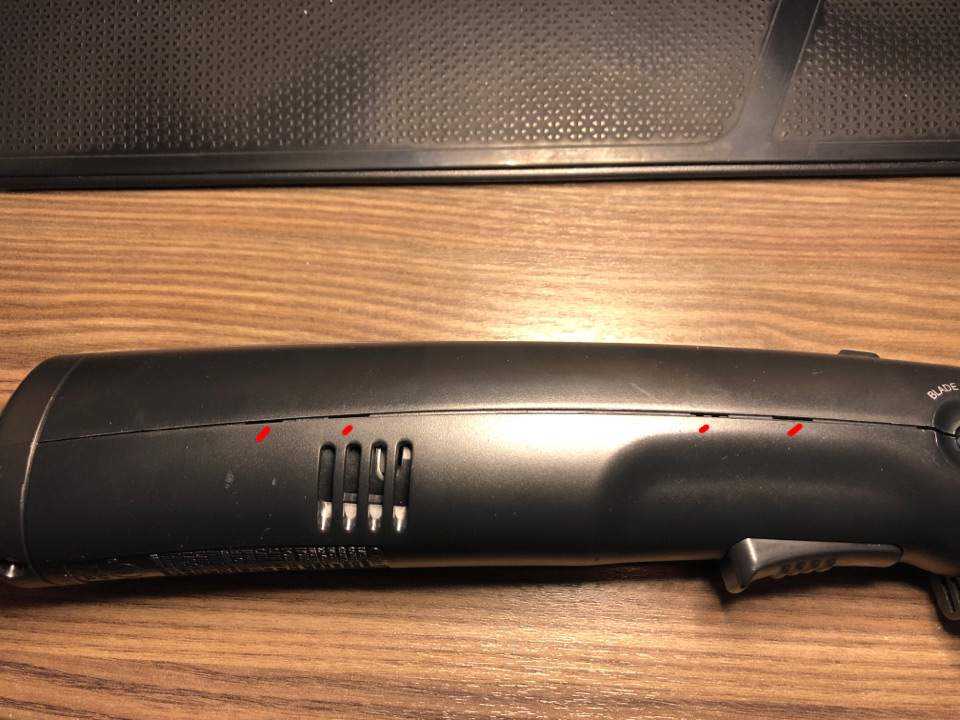
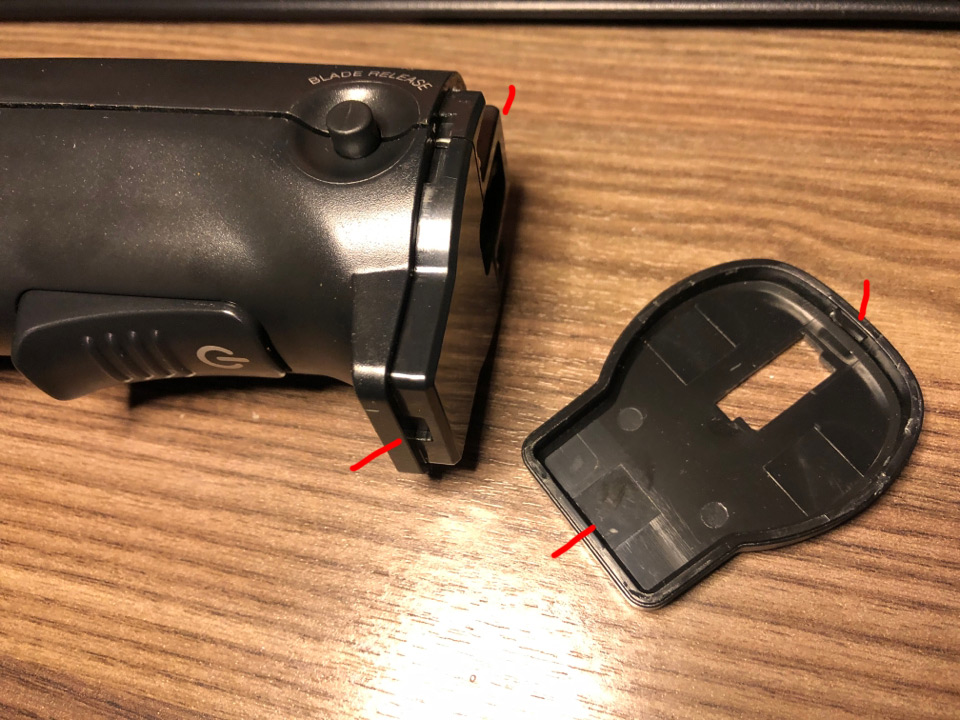
//Recently I had the misfortune of my Cuisinart CEK-50 cordless electric carving knife becoming defective. It was running continuously, even when the trigger wasn’t held down, and wouldn’t stop unless held at a specific angle.
As always with cheaply-made plastic consumer crap, the culprit was a 1¢ piece of plastic on a $3 component.
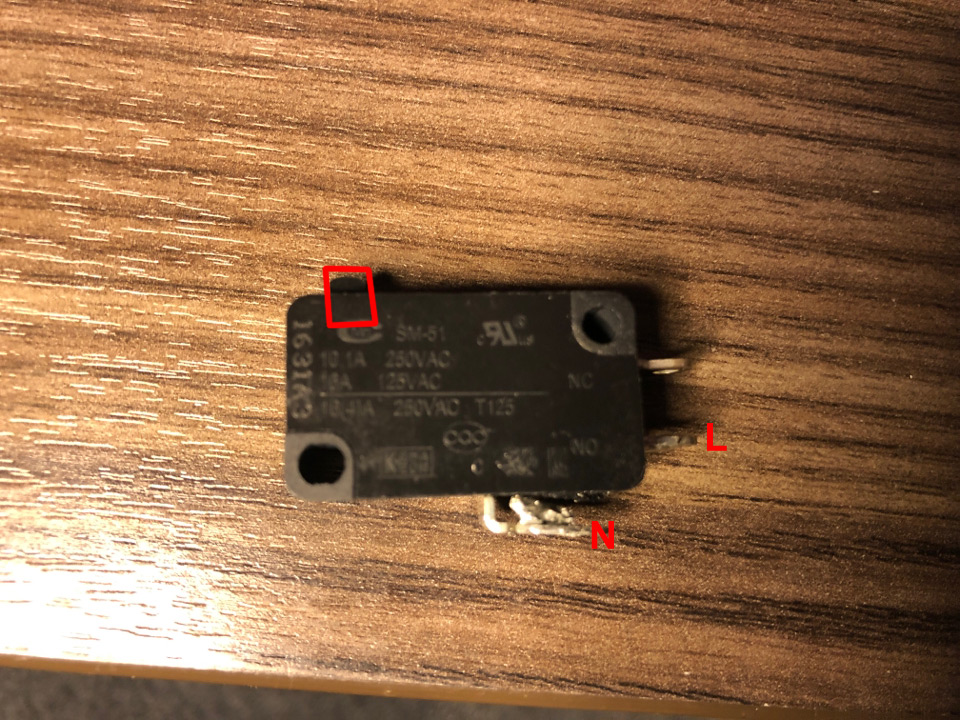
Specifically, the microswitch connected to the knife’s plastic trigger had its tiny actuator snap off. This meant the knife was running all the time unless the actuator was forced out of the switch (into the “off” position) by gravity.
What follows is a very rough guide to repairing the knife. It should take about an hour.
You’ll need:
You can test your new switch works before soldering by holding the neutral and live wires to their terminals and pressing the actuator.
 //
//Many recent articles about the WannaCry ransomware virus report that Microsoft has issued a fix to patch the issue. However, as is typical of today’s poor-quality mainstream journalism, the articles don’t include any links to the patch. So here are the links.
Windows 7: Install SP1 first and then use the links below.
Windows 7 SP1 32 bit: http://download.windowsupdate.com/d/msdownload/update/software/secu/2017/02/windows6.1-kb4012212-x86_6bb04d3971bb58ae4bac44219e7169812914df3f.msu
Windows 7 SP1 64 bit: http://download.windowsupdate.com/d/msdownload/update/software/secu/2017/02/windows6.1-kb4012212-x64_2decefaa02e2058dcd965702509a992d8c4e92b3.msu
Windows 8 32 bit: http://download.windowsupdate.com/c/msdownload/update/software/secu/2017/05/windows8-rt-kb4012598-x86_a0f1c953a24dd042acc540c59b339f55fb18f594.msu
Windows 8 64 bit: http://download.windowsupdate.com/c/msdownload/update/software/secu/2017/05/windows8-rt-kb4012598-x64_f05841d2e94197c2dca4457f1b895e8f632b7f8e.msu
Windows 8.1 32 bit: http://download.windowsupdate.
Windows 8.1 64 bit: http://download.windowsupdate.com/c/msdownload/update/software/secu/2017/02/windows8.1-kb4012213-x64_5b24b9ca5a123a844ed793e0f2be974148520349.msu
Downloads for other operating systems can be found by clicking the OS name here: https://technet.microsoft.com/en-us/library/security/ms17-010.aspx#ID0EHB
//There are various solutions floating around for the Windows Update error “80070422” (aka 0x80070422) but none of them worked for me.
Here’s what worked:
//Here’s a mirrored copy of the Trillian messenger skin “Trillian Live Messagewindow” by Scream81, originally hosted at http://forums.ceruleanstudios.com/showthread.php?t=105070.
Currently only works with Trillian versions 5.6 and below. I’ll update when/if it’s compatible with v6+.
//If you’ve recently upgraded Firefox you may be left with lots of unsigned extensions which need to be reinstalled. If you’ve followed our guide to allowing unsigned extensions in Firefox then you’re halfway there; but what if you don’t want to manually re-install every single one of your old or unsigned extensions, one-by-one?
Luckily, there is a way to automatically re-install all of them with very little effort.
First of all, you should have already upgraded Firefox and enabled unsigned extensions. Now, to reinstall all your extensions in one go, do this:
1. Open your Firefox profile folder (%appdata%/Mozilla/Firefox/Profiles/[profile_id] or, from Firefox, navigate to about:support and click Show Folder). Ensure Firefox is closed.
2. Now open the extensions subfolder and temporarily move all of the files/folders to another location.
3. Open Firefox again; you should have no extensions now.
4. Close Firefox and move all those extension files/folders back to the extensions folder.
7. Re-open Firefox once more and you should see lots of new tabs asking you to install your old extensions. You can either click Install on each tab, or go to the Tools > Add-ons window and install/enable them all in bulk.
//Recently Mozilla made a change to Firefox so that, as of version 48, all extensions (add-ons) must be signed in order to be installed or used.
I discovered this after updating from Firefox v40 to v50 and having literally all of my extensions disabled, with the very helpful message “[This extension] could not be verified for use in Firefox and has been disabled”.
What’s worse is that there is absolutely no option to over-ride this behavior, even for advanced users. Another case of “Mozilla knows best”, of course, and another nail in the coffin of user choice.
To use unsigned addons, Mozilla says you should use a Firefox developer version (“Nightly”), an Extended Support Release (ESR) or their “unbranded” browser which has an ugly black icon and no name.
All of these are, of course, unacceptably inflexible solutions which act as a giant middle finger to the user. But there is a way you can continue to use the branded version of Firefox while still using any unsigned addons.
Firstly, with thanks to a post by user chaser__ on Reddit, do the following:
1. Browse to about:config and set the following preferences to false:
xpinstall.signatures.required
xpinstall.whitelist.required
2. Open your Firefox program folder (%programfiles%/Mozilla Firefox) and create a file called config.js with the following content (including leading comment line (“//”)):
//
try {
  Components.utils.import("resource://gre/modules/addons/XPIProvider.jsm", {})
    .eval("SIGNED_TYPES.clear()");
}
catch(ex) {}
3. From the same folder, open defaults/pref and create a file called config-prefs.js:
pref("general.config.obscure_value", 0);
pref("general.config.filename", "config.js");
4. Now close and restart Firefox and you will be able to install unsigned addons.
If you have a number of existing unsigned addons you’d like to continue using, then you can either manually reinstall them or see our post on How to re-enable unsigned addons in Firefox 50 without reinstalling them manually.
//Firefox has just been upgraded to version 29, and is apparently one step closer to being a clone of Google Chrome. As usual, the update is absolute crap and many users are incredibly angry.
So, to downgrade to version 28 of Firefox, just run the full v28 installer which can be found here:
ftp://ftp.mozilla.org/pub/firefox/releases/28.0/win32/en-US/Firefox%20Setup%2028.0.exe
Oh, you should also submit some negative feedback and your thoughts about the “upgrade”, here: